Top AI UI Design Tools for Designers - 2026

Search “ai ui design tools” today and you’ll get a wall of listicles, plenty of them last year’s list with the year swapped out. We’d like this one to be more useful than that.
Two years ago, AI-generated interfaces looked like a template that had been through a blender. Now you can describe a checkout flow, upload a screenshot of an app you admire, or paste in a product brief, and get editable screens back in a few minutes. They still need a human. But they’ve taken the sting out of the blank canvas, which is where a lot of projects quietly lose their first week.
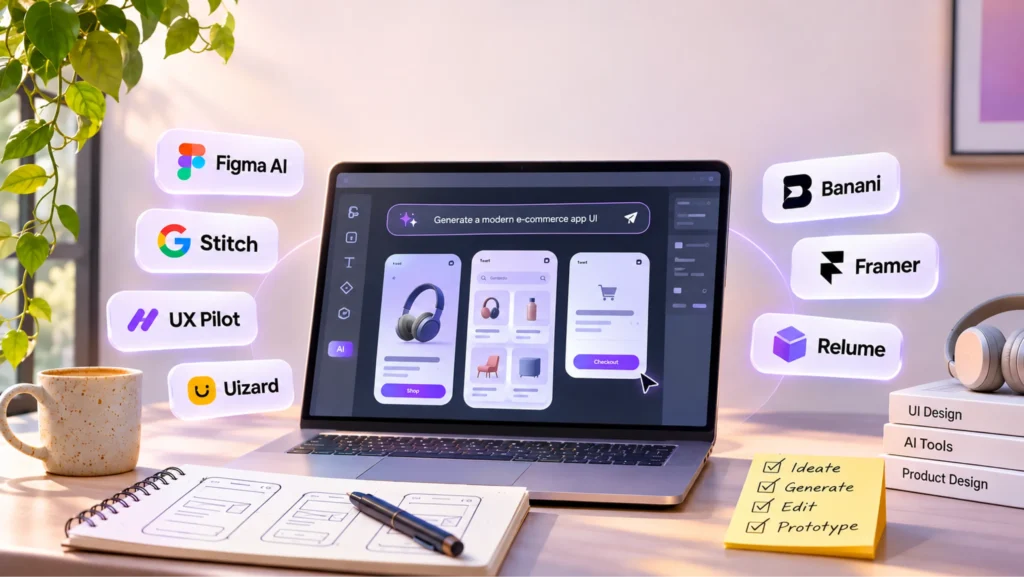
At Ittisa, we keep a close eye on what designers actually use day to day. Below are the seven AI UI design tools we’d point you to right now, along with a few notes on choosing between them.
What We Looked For

Before you pick any AI tools for UI design, it helps to know what separates a useful one from a slick demo. Here’s the checklist we’d use.
Can you edit what it makes? A flat image is no good to anyone. You want real layers, text you can change and spacing that survives a nudge. Does it stay consistent from screen to screen, or does every new screen look like a different designer made it? How painful is the handoff to Figma or code? And what does it cost once the free allowance runs out? Most of these charge for AI use by the credit, and credits vanish fast.
None of the tools below ticks every box, so expect some trade-offs.
The Best AI UI Design Tools in 2026
Best AI UI design tools in 2026 share one trait: what they hand back is editable, not a pretty picture you’ll have to redraw. In no strict order, here are the seven we’d shortlist.
Figma AI
Still the default for a reason. Figma Make turns a prompt into a working prototype, and the Figma agent, which rolled out to everyone this year, works directly on your canvas. You can teach it reusable skills that reflect your team’s conventions. Code layers now let you work with real code inside the design file, which should ease the old designer-developer tug of war. The catch is cost. AI usage runs on credits, and heavy users can hit the ceiling mid-project. If your team already lives in Figma, it’s the lowest-friction place to start.
Google Stitch
Google’s free-for-now option. Stitch began as a Labs experiment and became a full “vibe design” workspace in March. You describe the feel of an app, drop in sketches or screenshots as context, and a design agent explores several directions at once. You can edit by voice, keep brand rules in a DESIGN.md file and turn static screens into clickable prototypes. Developers get an MCP server too. It’s been free while it sits in Google Labs, though that could change as it matures. Worth an afternoon, especially if budget is tight.
UX Pilot
UX Pilot suits people who’d rather not leave Figma. Give it a prompt, a product brief or a screenshot and it returns wireframes, high-fidelity screens and connected flows on an AI canvas, with a plugin that carries them into your file. Predictive heatmaps add a rough read on where eyes will land. Reviews of the Figma import are mixed, though, and some users report distorted elements, so run one real screen through it before you commit. Handy when speed matters more than polish.
Uizard
Now part of Miro, Uizard is the friendliest tool here for people who don’t call themselves designers. Its Autodesigner takes a text prompt, a hand-drawn sketch or a screenshot and returns an editable multi-screen mockup, which suits workshops and stakeholder meetings where you need something on screen by lunch. The trade-off is depth. Some reviewers flag limited customization, and the free plan is tight on generations. Of all the AI UI design tools on this list, it’s the one we’d hand to a product manager before a designer.
Banani
Need concept screens by tomorrow? Banani is worth a try. It generates multi-screen web and mobile UI from a prompt, a screenshot or a PRD, and tries to keep the style consistent from one screen to the next. Edits happen at the component level, so you can ask for a change to one card without regenerating the page. Figma export is built in, there’s one-click code export, and an MCP connection lets coding agents pick up the design. Importing your own design system has been limited to the enterprise plan, which makes it better for pitch screens than for mature products.
Framer
Framer sits a little apart because it doesn’t stop at mockups. It publishes the site. Wireframer drafts a responsive page from a prompt, Workshop builds custom components from plain English, and Framer 3.0, announced in June, added AI agents that work on the canvas itself. It shines on marketing sites, landing pages and portfolios, and it’s a poor fit for complex apps. Pricing is per site, so costs creep up as projects multiply. If you ship marketing pages for a living, this one earns a serious look.
Relume
Relume handles the unglamorous planning that eats the start of every website project. Describe the business and it drafts a sitemap, turns each page into a wireframe using a library of 1,000-plus components, then builds a style guide you can export to Figma or Webflow. The output is low-fidelity on purpose, so don’t expect polished visuals. For anyone mapping out a client site, that’s exactly the point. It’s best used before a single design file gets opened.
How to Choose Between Them
The most useful way to think about AI tools for UI design is as a first-draft machine. Let them get you from nothing to something, then do the real thinking yourself: the hierarchy, the accessibility checks, the microcopy, and all the small decisions that make a product feel like it belongs to one brand.
Then pick by job. Already living in Figma? Start there, or add UX Pilot. Best AI UI design tools on a tight budget? Stitch, plus the free tiers of the rest. Pitching an app concept on Friday? Banani. Planning or shipping a marketing site? Look at Relume and Framer. Running a workshop with non-designers? Uizard is your friend. If code is the end goal, v0 by Vercel is worth a look, and Midjourney still earns its place for mood boards.
One more thing worth knowing: tools disappear. Motiff, an AI-first design editor, went offline in June 2026 and gave users until October to export their files. Keep your source work somewhere you control.
Final Thoughts
None of this replaces a designer’s judgment. The best AI UI design tools just clear away the slow, repetitive start of a project so you can spend your energy on the parts that need taste. Try two or three on a real brief rather than a toy prompt, and keep whichever one you’d actually reopen on Monday morning.
If you’re planning a redesign and want a second opinion on your toolkit, the Ittisa team is always happy to talk it through.
FAQs
What are the best AI UI design tools in 2026?
It depends on the job. Figma and UX Pilot suit designers who already work in Figma, Google Stitch is a solid free option, Uizard works for non-designers, Banani is quick for concepts, and Framer and Relume cover marketing websites. Plenty of teams end up combining two.
Are AI tools for UI design free?
Mostly free to start, rarely free to scale. Stitch has been free while it’s in Google Labs, and Figma, Banani, UX Pilot, Uizard, Framer and Relume all offer free plans with tight limits. Regular use usually means paying.
Can AI replace UI designers?
No. These tools are good at drafts and variations, and weaker at brand nuance, accessibility, edge cases and knowing why a screen should exist at all. Treat them as a quick assistant that still needs direction and review.
Which AI UI design tools export to Figma?
UX Pilot, Banani and Relume all offer a route into Figma, and Figma’s own AI works natively. Export quality varies, so test one real screen first. Layers and auto layout don’t always arrive clean.
How do I get better results from AI tools for UI design?
Be specific. Name the audience, the main action, the platform and the mood you want. Feed in screenshots or brand rules where the tool allows it, and change things in small steps instead of regenerating everything. Vague prompts get generic screens.
Do I need coding skills to use these tools?
No. Most of these work from plain-English prompts, sketches or screenshots. Coding knowledge only starts to matter when you export code or connect a tool to a developer workflow, and a developer can handle that part while you stay on the design side.